 follo
follo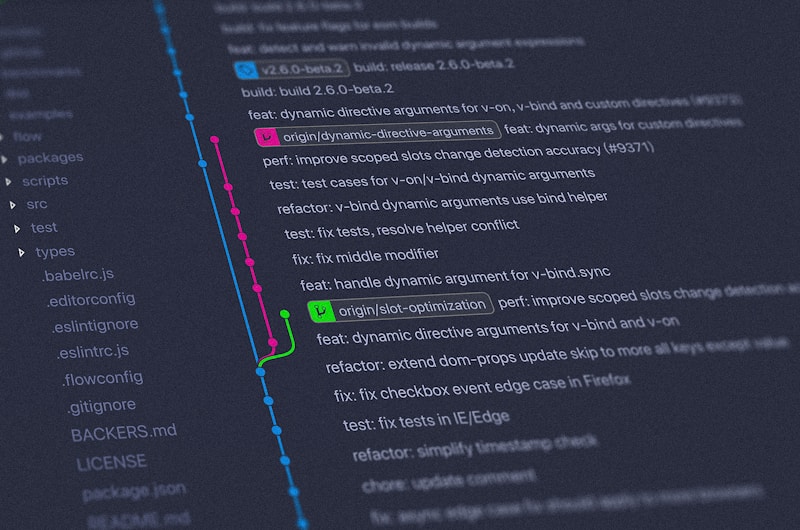
Essential VS Code Extensions for Web Developers in 2026
Visual Studio Code has solidified its position as the dominant code editor for web development, and its extensive extension ecosystem is a primary reason for its popularity. With thousands of extensions available, choosing the right ones can significantly impact your productivity, code quality, and development experience. In 2026, the VS Code extension landscape has evolved with new tools and improved capabilities that every web developer should know about. This guide covers the most essential extensions organized by category, from core productivity tools to specialized framework support.
Core Productivity Extensions Every Developer Needs
Prettier has become the de facto standard for code formatting in the JavaScript ecosystem. This extension automatically formats your code according to consistent rules, eliminating debates about code style and reducing the cognitive load of manual formatting. In 2026, Prettier supports an extensive range of languages and file types beyond JavaScript, including TypeScript, CSS, HTML, JSON, Markdown, and many more. Configure it to format on save for maximum efficiency, ensuring that every file you commit has consistent formatting without requiring any manual effort.
ESLint remains essential for JavaScript and TypeScript development. This static analysis tool identifies problematic patterns in your code before they cause bugs in production. The VS Code extension surfaces linting errors and warnings directly in your editor with inline highlighting and quick-fix suggestions. In 2026, ESLint's integration with VS Code is more seamless than ever, with automatic configuration detection and support for the latest ECMAScript features. Combining ESLint with Prettier gives you both style consistency and code quality enforcement.
GitLens has become the most powerful Git integration extension for VS Code. It provides inline blame annotations that show who last modified each line of code and when, making it easy to understand the history and context of any code segment. GitLens also enhances VS Code's built-in Git features with capabilities like interactive rebase visualization, commit search, branch comparison, and file history exploration. For developers working in team environments, GitLens transforms how you understand and navigate your project's Git history.
Path Intellisense simplifies file importing by providing intelligent autocomplete for file paths as you type. When you start typing an import statement, this extension shows you available files and directories in your project, reducing the time spent navigating the file system to find the correct path. It supports relative and absolute path resolution and works with common import styles across different frameworks and bundlers. This seemingly simple extension saves significant time over the course of a development session.
Language-Specific Extension Must-Haves
TypeScript support in VS Code is already excellent out of the box, but the JavaScript and TypeScript Nightly extension provides early access to the latest TypeScript features and improvements. For developers working on cutting-edge TypeScript projects or those who want to test upcoming features, this extension is invaluable. It also includes bug fixes and performance improvements before they reach the stable release, ensuring you have the best possible TypeScript development experience.
For Python developers, the Python extension by Microsoft remains the essential choice. It provides comprehensive language support including IntelliSense, linting, debugging, testing, and Jupyter notebook integration. In 2026, the extension's support for type checking with Pyright has matured significantly, offering TypeScript-like type checking for Python code. The extension also simplifies environment management, automatically detecting and activating virtual environments and conda environments.
The Tailwind CSS IntelliSense extension is indispensable for developers using the Tailwind CSS framework. It provides autocomplete for class names, hover previews showing the actual CSS values, and linting that catches invalid or unused classes. The extension also supports custom configurations, including custom colors, spacing, and breakpoints defined in your tailwind.config.js file. For Tailwind CSS users, this extension transforms the development experience from memorization to discovery.
For developers working with React, the ES7 React and Redux snippets extension provides a comprehensive collection of code snippets that accelerate common development patterns. From functional component boilerplate to Redux reducer templates, these snippets reduce repetitive typing and help maintain consistent code structure across your React projects. The extension supports both JavaScript and TypeScript variants and stays current with the latest React patterns including hooks and server components.
Debugging and Testing Extensions
The VS Code built-in debugger is already powerful, but the Debugger for Chrome extension extends its capabilities to browser-based JavaScript debugging. You can set breakpoints, inspect variables, and step through code running in the Chrome browser directly from VS Code. The extension supports source maps, enabling debugging of compiled or minified code in its original source form. Combined with VS Code's integrated terminal, this creates a complete development loop without leaving the editor.
Jest extension provides seamless integration for developers using the Jest testing framework. It displays test results inline in your editor, shows pass or fail status next to test descriptions, and provides one-click commands to run individual tests or test suites. The extension also supports debugging tests directly from the editor, allowing you to set breakpoints and step through test execution. For teams practicing test-driven development, this tight integration between editor and test runner significantly improves the development workflow.
The REST Client extension replaces standalone API testing tools like Postman for many developers. It allows you to define and execute HTTP requests directly from VS Code using a simple text file format. The extension supports all HTTP methods, custom headers, authentication methods, and environment variables. Test results are displayed in a clean response viewer with syntax highlighting and formatting. Having API testing integrated into your editor eliminates context switching and keeps all your development tools in one place.
Coverage Gutters displays code coverage information directly in your editor by highlighting lines that are covered, not covered, or partially covered by tests. This visual feedback helps you identify untested code paths and track testing progress as you work. The extension supports multiple coverage report formats and works with any testing framework that produces coverage output. Seeing coverage information while you code encourages better testing habits and helps maintain high testing standards.
HTML, CSS, and Design Extensions
Live Server has been a staple extension for web developers, providing a local development server with live reload capability. When you save changes to HTML, CSS, or JavaScript files, the browser automatically refreshes to show the updated content. In 2026, Live Server supports features like hot module replacement for certain frameworks and integration with VS Code's built-in browser preview. For frontend developers working on static sites or simple web applications, Live Server dramatically accelerates the development feedback loop.
CSS Peek enhances your ability to navigate and understand CSS in large projects. It allows you to jump from HTML class references directly to the corresponding CSS definitions, peek at CSS definitions without leaving your current file, and see a list of all CSS selectors matching a given HTML element. This navigation capability is particularly valuable in projects with large CSS files or when using utility-first frameworks like Tailwind CSS where class names don't directly indicate their styling.
The Image Preview extension displays image previews inline in your editor when you hover over image file references in your code. It supports common image formats including PNG, JPEG, GIF, SVG, and WebP. For web developers who frequently reference images in HTML and CSS files, this extension eliminates the need to open separate image viewers or file explorers to verify image content. It also shows image dimensions and file sizes, helping you make informed decisions about image optimization.
Color Highlight and Color Picker extensions work together to improve your experience with color values in code. Color Highlight displays a colored background behind color values in your code, making it visually apparent what color is being used. The Color Picker extension provides an integrated color picker interface that appears when you hover over color values, allowing you to visually select and modify colors without leaving your editor. These extensions make color management in CSS and design systems more intuitive and efficient.
DevOps and Container Extensions
The Docker extension provides comprehensive support for working with Docker containers directly from VS Code. It allows you to manage containers, images, volumes, and networks through a graphical interface integrated into the editor sidebar. The extension also provides IntelliSense for Dockerfiles and docker-compose files, making it easier to write correct container configurations. For web developers using containerized development environments or deploying with Docker, this extension is essential.
The Remote Development extension pack enables you to develop in remote environments as if they were local. Using SSH, containers, or the Windows Subsystem for Linux, you can open any folder in a remote environment and get the full VS Code experience including extensions, IntelliSense, and debugging. This capability is invaluable for developers who work with cloud-based development environments, need to test on specific operating systems, or prefer to keep their development environment isolated from their local machine.
GitHub Actions extension brings GitHub Actions management into VS Code. You can view workflow runs, monitor their status, and inspect logs without leaving the editor. The extension also provides syntax highlighting and validation for workflow YAML files, helping you catch configuration errors before pushing to GitHub. For teams that rely heavily on GitHub Actions for CI/CD, this extension streamlines the workflow management process.
Thunder Client is a lightweight REST API client extension that provides a clean interface for testing APIs within VS Code. It supports environment variables, authentication methods, and request chaining, making it suitable for complex API testing scenarios. Thunder Client stores your requests locally and supports exporting collections for sharing with team members. Its lightweight design and VS Code integration make it a compelling alternative to standalone API testing tools for many development workflows.
Customizing Your Extension Setup
While the extensions covered in this guide represent the most broadly useful tools, the best extension set for you depends on your specific technology stack and workflow preferences. Consider your primary programming languages, frameworks, and development practices when selecting extensions. Avoid installing extensions out of curiosity or because they are popular without evaluating whether they genuinely improve your workflow. Each extension adds some overhead in terms of startup time, memory usage, and potential conflicts.
Use extension profiles in VS Code to manage different configurations for different types of work. You might have a profile for frontend web development with extensions for React, TypeScript, and CSS tools, and another profile for backend development with Python or Node.js extensions. Profiles allow you to enable only the extensions relevant to your current task, reducing clutter and improving editor performance. You can switch between profiles easily and even share profiles with team members for consistent setups.
Regularly review your installed extensions and disable or uninstall those you no longer use. Development practices and preferred tools change over time, and extensions that were once essential may become obsolete or replaced by built-in features. A quarterly review of your extension setup ensures that your editor remains optimized for your current workflow. Pay attention to extensions that have not been updated recently, as they may have compatibility issues with newer VS Code versions.
Frequently Asked Questions
How many VS Code extensions should I install?
Quality matters more than quantity. Most developers find fifteen to twenty-five carefully chosen extensions sufficient for their needs. Installing too many extensions can slow down editor startup time and increase memory usage. Select extensions that provide clear value for your specific workflow.
Do extensions affect VS Code performance?
Yes, extensions can impact performance, particularly startup time and memory usage. Well-maintained extensions from reputable developers typically have minimal performance impact, but poorly written extensions can cause noticeable slowdowns. If you experience performance issues, try disabling extensions one at a time to identify the culprit.
How do I sync my VS Code extensions across multiple machines?
Use VS Code's Settings Sync feature, which synchronizes your extensions, settings, keybindings, and other configurations across devices using your GitHub account. This feature ensures consistent development environments across all your machines and makes setting up a new machine quick and easy.
Are there extensions that work offline?
Most VS Code extensions work offline once installed, though some features like documentation lookups or marketplace browsing require internet access. Core functionality for extensions like Prettier, ESLint, and language support typically works without an internet connection.
How do I find trustworthy extensions?
Look for extensions with high download counts, recent updates, positive ratings, and well-known publishers or organizations. Check the extension's repository for active maintenance and responsive issue resolution. Be cautious with extensions that request extensive permissions beyond what seems necessary for their functionality.
Can I create my own VS Code extensions?
Yes, VS Code provides a comprehensive API for creating custom extensions. You can create extensions using TypeScript or JavaScript, and Microsoft provides detailed documentation and examples. Custom extensions are a great way to automate repetitive tasks or share internal tools with your team.
Should I use extension packs or install individual extensions?
Extension packs are convenient for quickly setting up a development environment for a specific technology or workflow. However, packs often include extensions you may not need. Installing individual extensions gives you more control and results in a leaner, more intentional setup tailored to your specific needs.